Convert many iPhone HEIC photos in one queue—private, local, and ZIP-ready. No account. No upload wall.
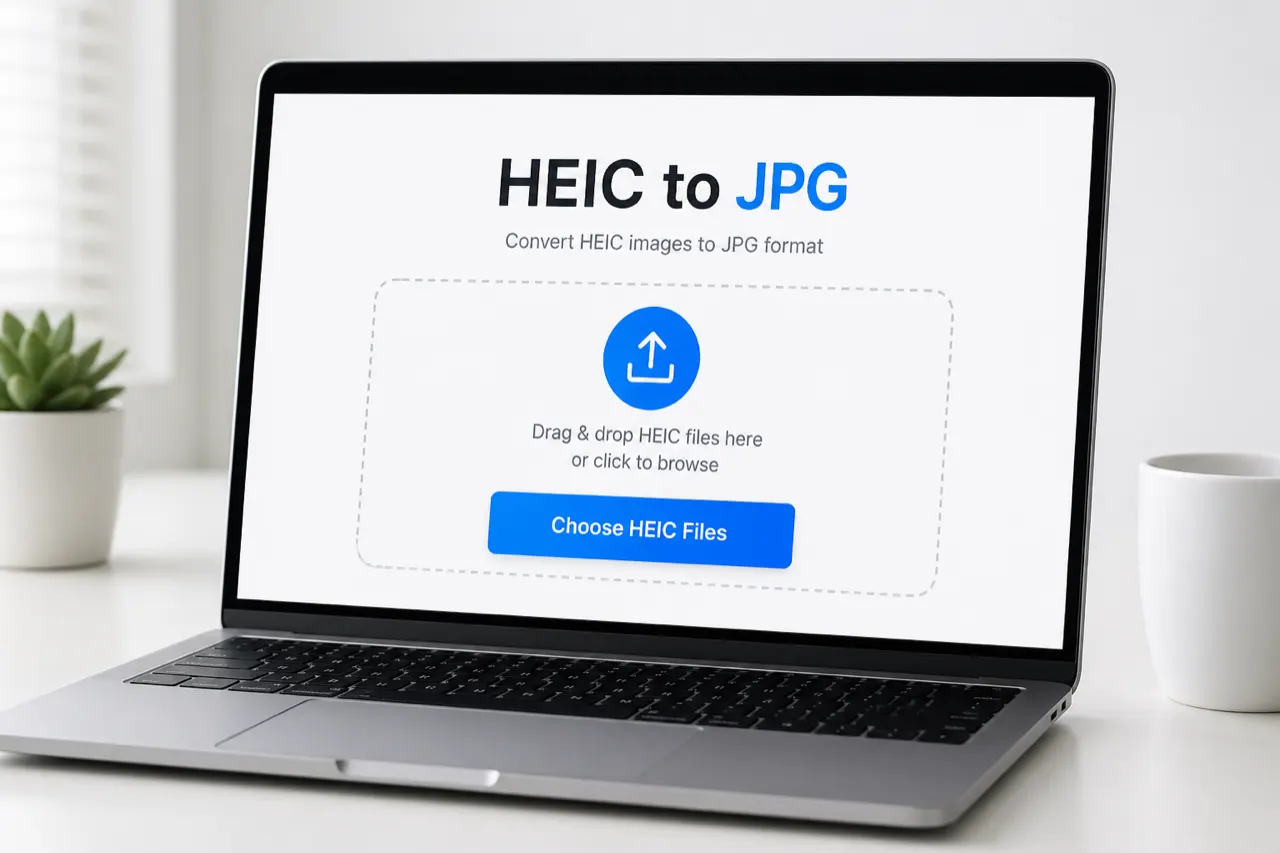
Drop HEIC or HEIF photos here
Select one or multiple HEIC/HEIF files · Auto-converts locally · No uploads
Advanced options
Higher quality = larger files. Default 92 keeps original pixel dimensions (lossy JPG, not mathematical lossless).
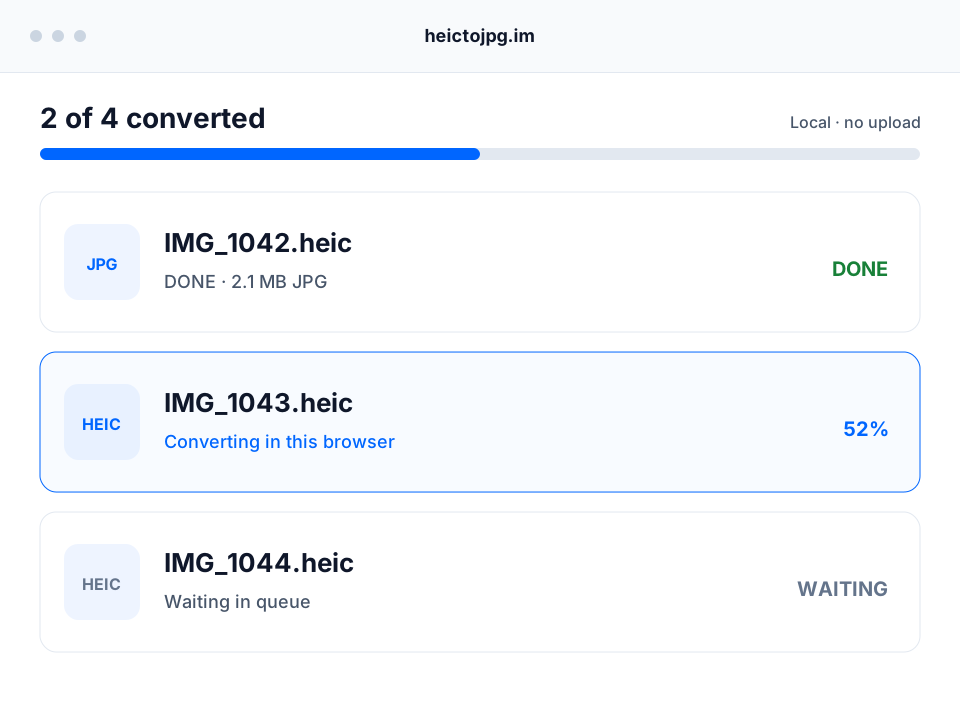
Your photos stay on this device.
0 of 0 converted
Why batch
Why batch convert HEIC to JPG in the browser?
Bulk HEIC jobs often come from vacations, real-estate shoots, or a shared family album. People search “batch convert heic to jpg”, “bulk heic to jpg”, and “windows 11 bulk heic to jpg” when they need many files at once—not one slow upload after another. Upload converters force every photo through a remote server and sometimes paywall “unlimited” batches.
This page uses the same local engine as the homepage HEIC to JPG converter: multi-select, concurrent workers capped for stability, early single-file download, and a client-side ZIP when you want one archive. Photos are not uploaded to our servers for conversion.
How to
How to batch convert HEIC to JPG free online
Step 1
Choose the batch
Open this page in a desktop browser when possible, then choose many HEIC/HEIF files or drop them into the converter.
Step 2
Watch each file
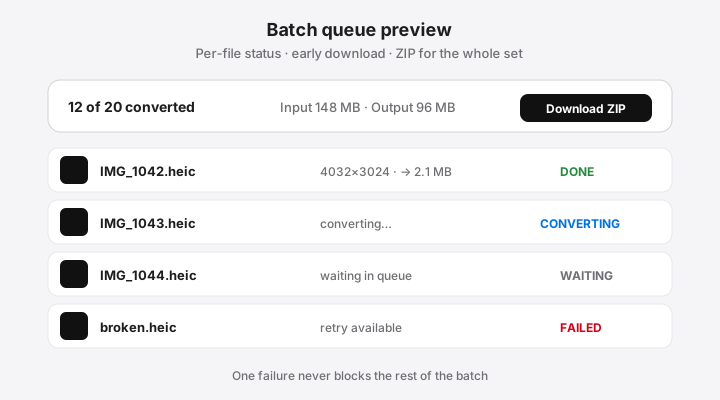
Per-file status stays visible. Download finished JPGs early if you need them; one failure never blocks the rest.
Step 3
Download the ZIP
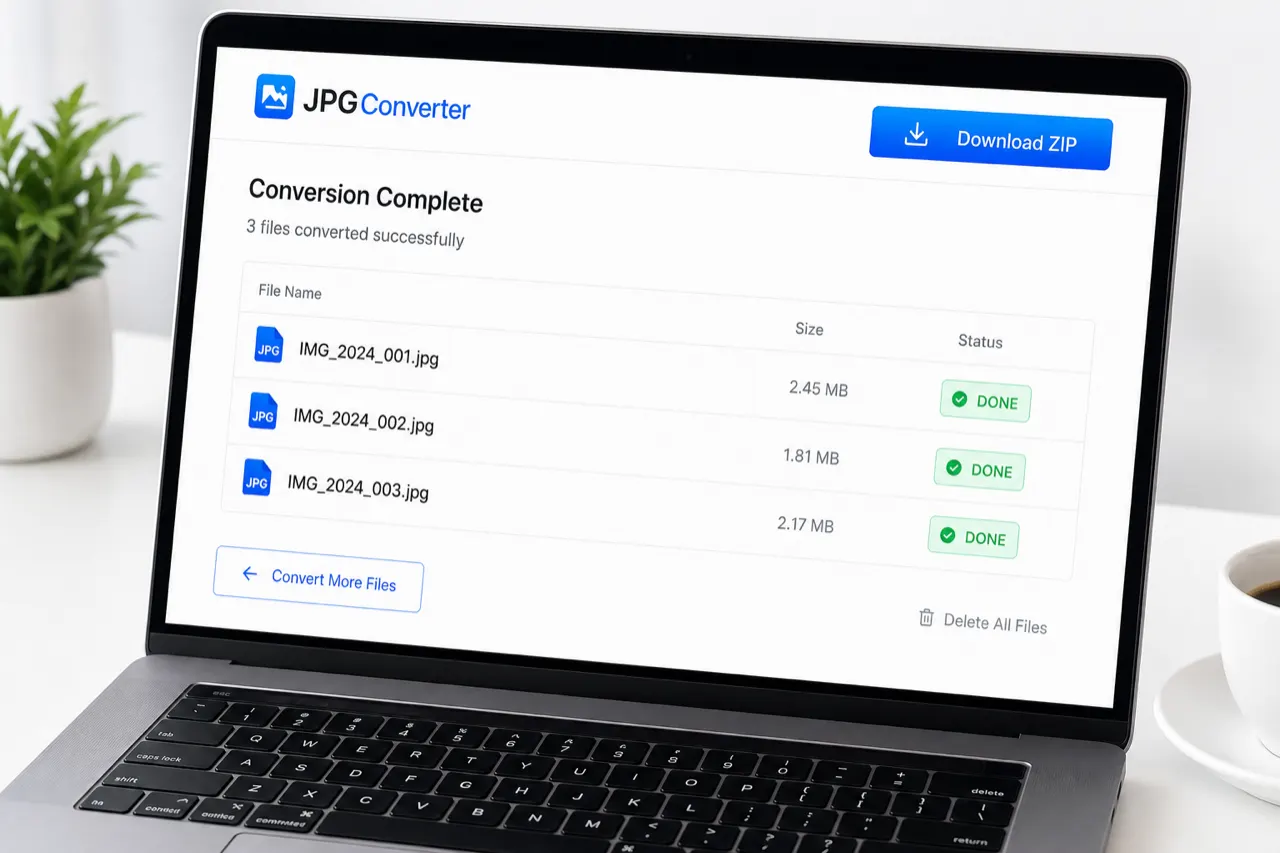
When enough files are done, use Download all as ZIP. Clear the queue on a shared PC to free browser memory.
No account is required. Quality defaults to 92; change Advanced options before a large batch if you need smaller files for email.
Queue
Queue behavior that keeps you in control
Auto-start after you choose files—no extra confirm step.
Retry only the failures without re-adding everything.
Remove items you no longer need and free memory.
Add more mid-session without wiping finished results.
Naming, duplicates, and partial success
Output files use the source base name with a .jpg extension. If two inputs would collide, the tool appends -2, -3, and so on. Partial batches are first-class: download what finished, fix or skip the rest.
That design matters when folders contain camera defaults like repeated IMG_ names after copies. You should never lose a successful convert because a later file shared a name.
Memory-aware concurrency (not “decode everything at once”)
Local batch is not the same as opening every bitmap simultaneously. The converter keeps a short worker pool—more conservative on mobile—so scrolling, cancel, and remove stay usable. On low-memory devices, convert in groups of 10–25 large 12MP photos rather than hundreds at once.
If the tab becomes sluggish, pause by clearing finished items, close other heavy tabs, and continue in waves. That is normal for private on-device work—not a hidden paid throttle.
When not to use browser batch
If you need server-grade pipelines (thousands of images nightly), verified EXIF field matrices, or automated folder watchers, a desktop app or scripted pipeline may fit better. This free batch convert HEIC to JPG page is optimized for people who want a private ZIP now without installing software.
Performance expectations (honest, no fake benchmarks)
We do not publish “50 photos in 1 second” claims. HEIC decode cost scales with megapixels, HDR/10-bit content, browser engine, and free RAM. After you run a real batch on your machine, use the progress line (N of M converted) as ground truth—not marketing timers.
Scenario
Guidance
10 full-resolution iPhone photos
Usually fine on modern laptops; try on desktop first if phone is low on RAM.
50+ photos
Prefer desktop/Chromebook with free memory; keep ZIP for the end.
100–200 photos
Split into waves; clear finished items between waves on phones.
One huge burst / multi-image HEIC
May fail or only export the primary frame—retry or re-export from Photos.
Table is operational guidance, not a timed lab result. Publish timed numbers only after you measure them on named hardware.
Select multiple .heic or .heif files at once (or drop a group into the tool). Conversion starts automatically; download each finished JPG or one ZIP for the set.
Is batch convert HEIC to JPG free?
Yes. This batch HEIC to JPG path is free online with no account and no paid “bulk only” wall. Device memory still sets a practical ceiling.
Is there a file limit for bulk HEIC conversion?
We do not impose an arbitrary paid quota. Real limits come from browser memory and device CPU—large batches on phones may need smaller groups.
What happens if one file fails in a batch?
Failed items stay marked with an error and Retry. Successful files remain downloadable so one bad HEIC never blocks the whole job.
Can I download all converted photos as a ZIP?
Yes. When at least one JPG is ready, use Download all as ZIP to pack finished results without waiting for a server archive.
Will same-named HEIC files overwrite each other?
No. Output names get stable suffixes when duplicates appear so IMG_1.jpg and a second IMG_1 become distinct files.
Can I batch convert HEIC to JPG on Windows 11?
Yes. Use Chrome or Edge on Windows 11, multi-select HEIC files here, and download a ZIP—no Store codec install required for this browser path.
Why is local batch slower than some upload sites advertise?
Upload sites shift work to servers; we keep photos on-device and process with conservative concurrency so the UI stays responsive. Speed depends on resolution and your hardware.
We'd Love to Hear From You! 💬
Your feedback helps us make heictojpg.im better
Hey there! 👋 Got something to share? Whether it's a bug, an idea, or just a quick thought — we're all ears!