Windows 11 · No codec install

Convert HEIC to JPG on Windows 11

Open iPhone HEIC photos on Windows without hunting Store codecs. Convert free in your browser—local, batch-ready, ZIP export.

Drop HEIC or HEIF photos here

Select one or multiple HEIC/HEIF files · Auto-converts locally · No uploads

Advanced options

Higher quality = larger files. Default 92 keeps original pixel dimensions (lossy JPG, not mathematical lossless).

Your photos stay on this device.

The problem

Why Windows struggles with HEIC

iPhones often save photos as HEIC. Many Windows PCs do not ship with full HEIF support, so double-clicking a file does nothing useful, thumbnails stay blank, or apps ask for extensions. That is why searches for “heic to jpg windows 11”, “heic to jpg windows 11 free”, and “why can’t I open heic files on windows” stay popular.

JPG remains the format that email clients, printers, LMS portals, and older Office workflows accept without drama. Converting HEIC to JPG on Windows is often about compatibility—not about making the photo “better.”
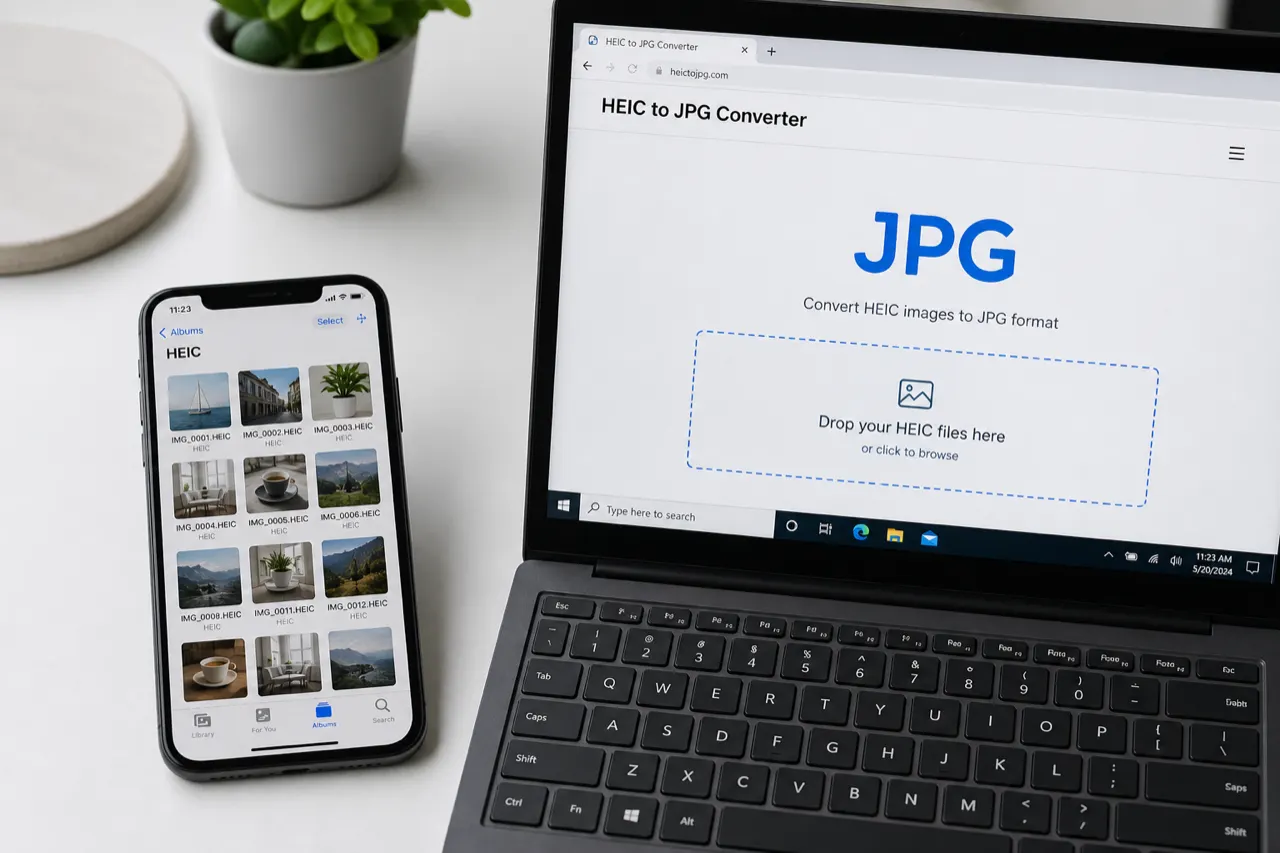
Convert HEIC to JPG on Windows in the browser without installing codecs

Method 1

Method 1: Browser converter (no install)

For most people who only need to share or print, a free browser HEIC to JPG converter on Windows 11 is enough. No admin rights. No Store purchase for the conversion task itself.

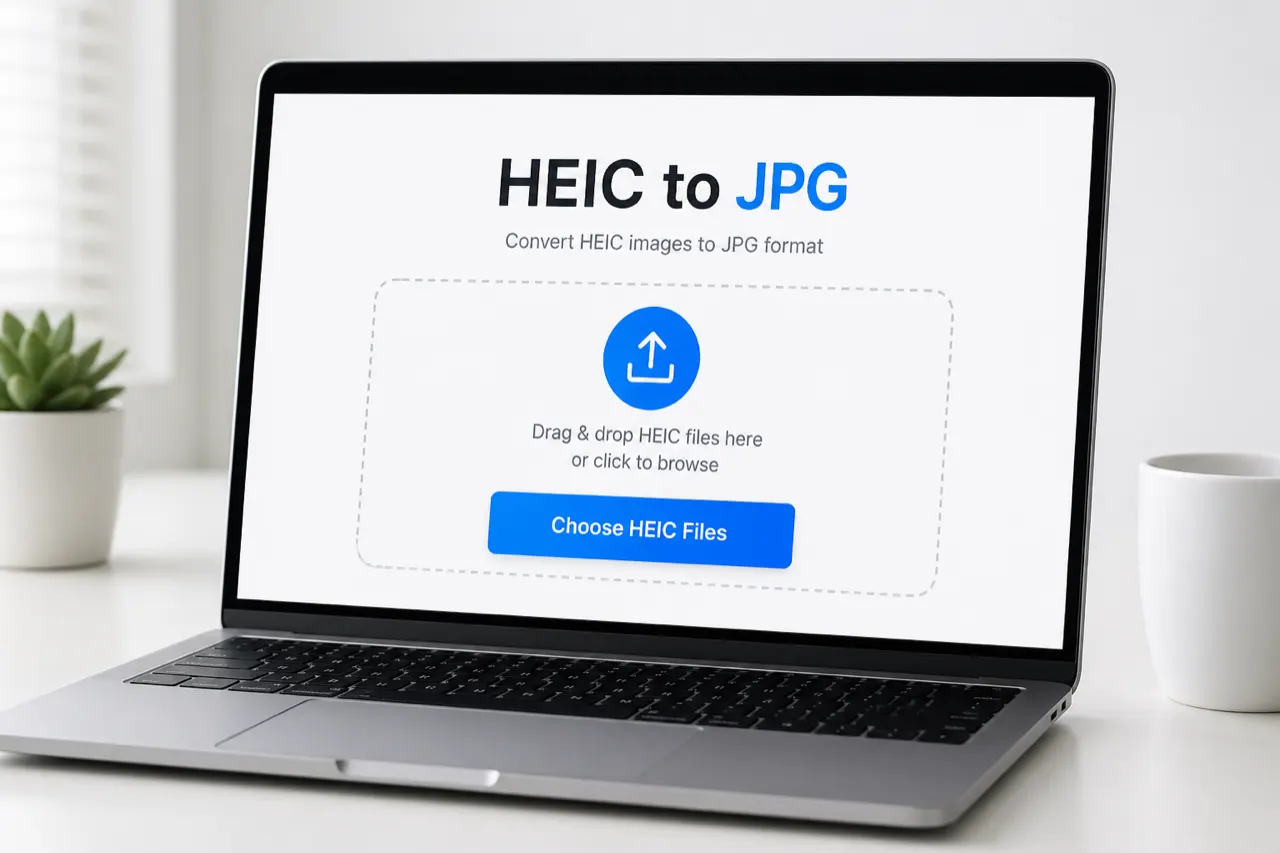
Choose HEIC files on Windows in the browser

Step 1

Copy files to the PC

Bring HEIC files from your phone, email, or cloud folder, then use Choose HEIC Files in Chrome or Edge.

HEIC converting to JPG locally on Windows

Step 2

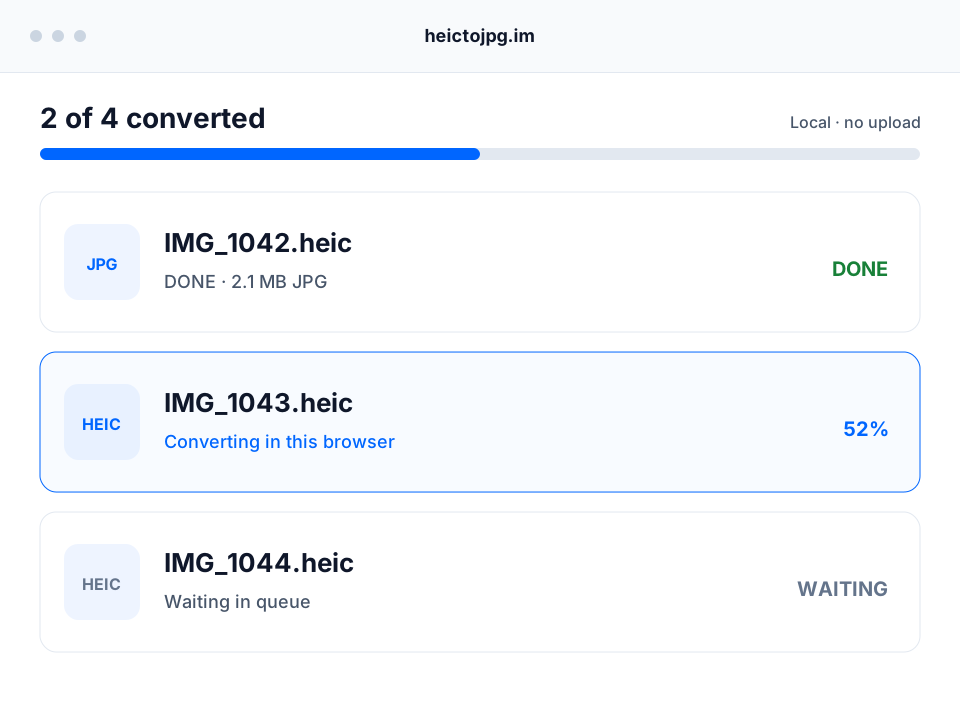
Convert locally

Wait for local conversion. No Store codec is required for this browser path.

Download JPG or ZIP on Windows

Step 3

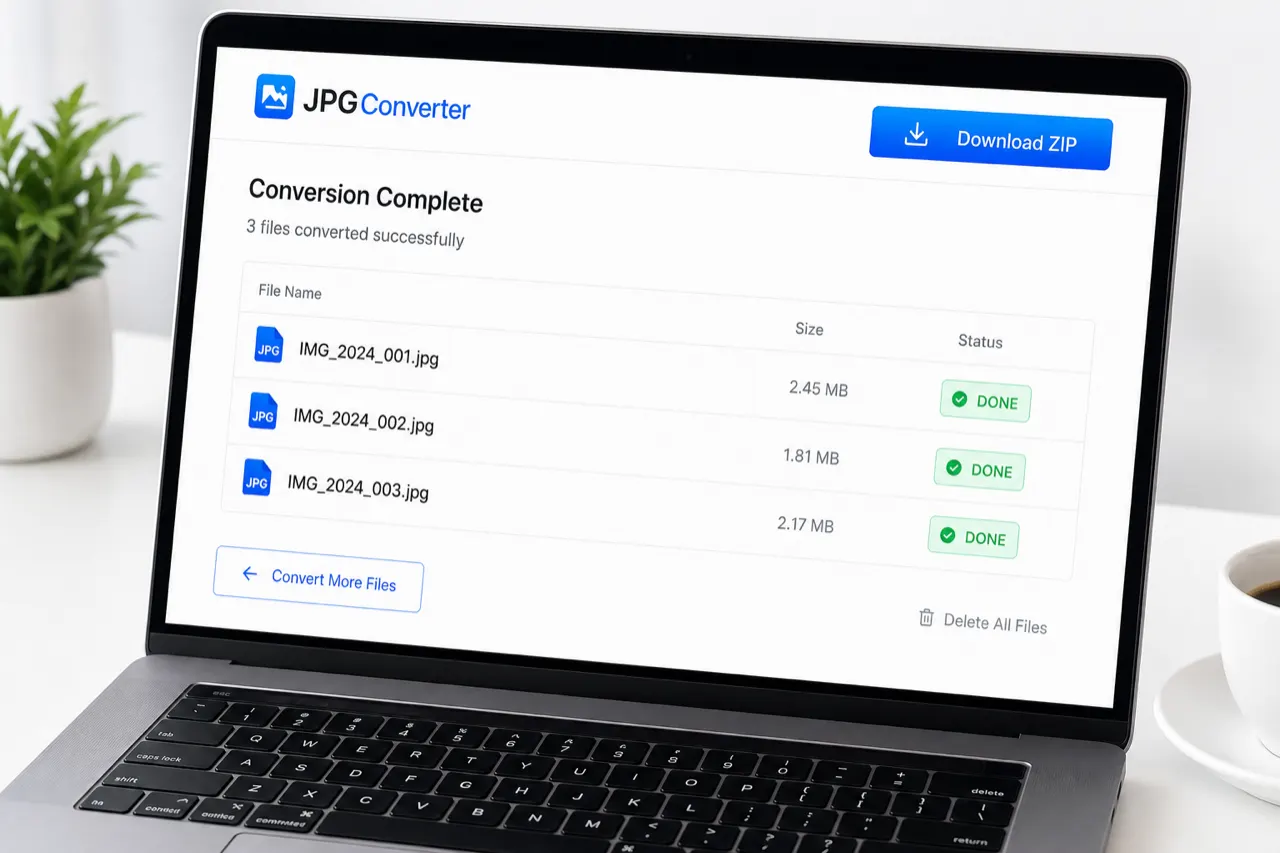
Download JPG or ZIP

Save individual JPGs or one ZIP, then clear the queue on a shared work machine.

Benefits: works offline after the page loads, supports multi-file batches, and keeps photo bytes off conversion servers. See also the batch convert HEIC to JPG guide for large folders.

Method 2

Method 2: Native Windows codecs (optional)

If you want Explorer thumbnails and the Photos app to open HEIC natively, install Microsoft’s HEIF Image Extensions from the Microsoft Store. Some configurations also need an HEVC Video Extensions package (licensing and availability change—check current Microsoft Store listings before purchasing). After codecs install, Windows can preview HEIC, but recipients may still need JPG.

Native codecs help viewing; they do not replace a simple batch ZIP workflow when you need to send twenty photos to someone without HEIC support. This site is independent and is not affiliated with Microsoft.

Windows 10 vs Windows 11

Both can use this browser HEIC to JPG path. Differences mainly appear in Store extension packaging and default Photos app behavior—not in the need for JPG when sharing widely. Keep both OS versions on this single guide instead of splitting thin duplicate URLs for Windows 10 and Windows 11.

Apps, PowerShell, and “download” searches

Dropdown suggestions include “heic to jpg windows 11 app”, “download”, and “powershell.” Those are valid power-user paths. For most students and office users, installing another app is unnecessary if the browser can convert. Always download tools only from vendors you trust; this page does not distribute third-party installers.

Troubleshooting: can’t open HEIC on Windows

  • Blank thumbnail — codecs missing; convert to JPG or install HEIF extensions.
  • Conversion fails in browser — try Edge/Chrome, free more RAM, or re-export the photo from the iPhone.
  • File is not HEIC — confirm extension .heic/.heif; some “Live” containers behave differently.
  • Work PC blocks installs — browser conversion avoids admin installs.
  • Need quality control — use Advanced options (default quality 92) before converting a large set.

FAQ

Windows FAQ

How do I convert HEIC to JPG on Windows 11 without software?

Open this page in Chrome, Edge, or another modern browser, choose your HEIC files, and download JPG or ZIP output. No HEIF codec install is required for the browser path.

Is HEIC to JPG on Windows 11 free?

Yes. This browser converter is free online with no account. Optional Microsoft Store codecs for native preview may have their own licensing—those are separate from this tool.

Why can’t I open HEIC files on Windows?

Windows may lack HEIF/HEVC image extensions, so Explorer thumbnails and Photos can fail. Converting to JPG produces a format Windows apps open by default.

Do I need the Microsoft HEIF Image Extensions?

Only if you want native Windows preview of HEIC. For sharing and printing as JPG, the browser converter is enough.

Does this work on Windows 10 as well?

Yes. The same browser workflow applies on Windows 10 and Windows 11. Codec store packages differ by OS version if you choose the native route.

Can I batch convert HEIC on a Windows PC?

Yes. Multi-select files, convert locally, and download a ZIP. Large batches prefer a desktop browser with free RAM.

Is browser conversion private on a work PC?

Photo bytes stay in the browser for conversion. Still follow workplace policy, clear the queue when done, and avoid untrusted shared machines for sensitive photos.

Do I need a Windows 11 app or PowerShell script?

Not for this method. Apps and PowerShell can help power users, but the free browser HEIC to JPG path needs no install when your browser can decode the file.